
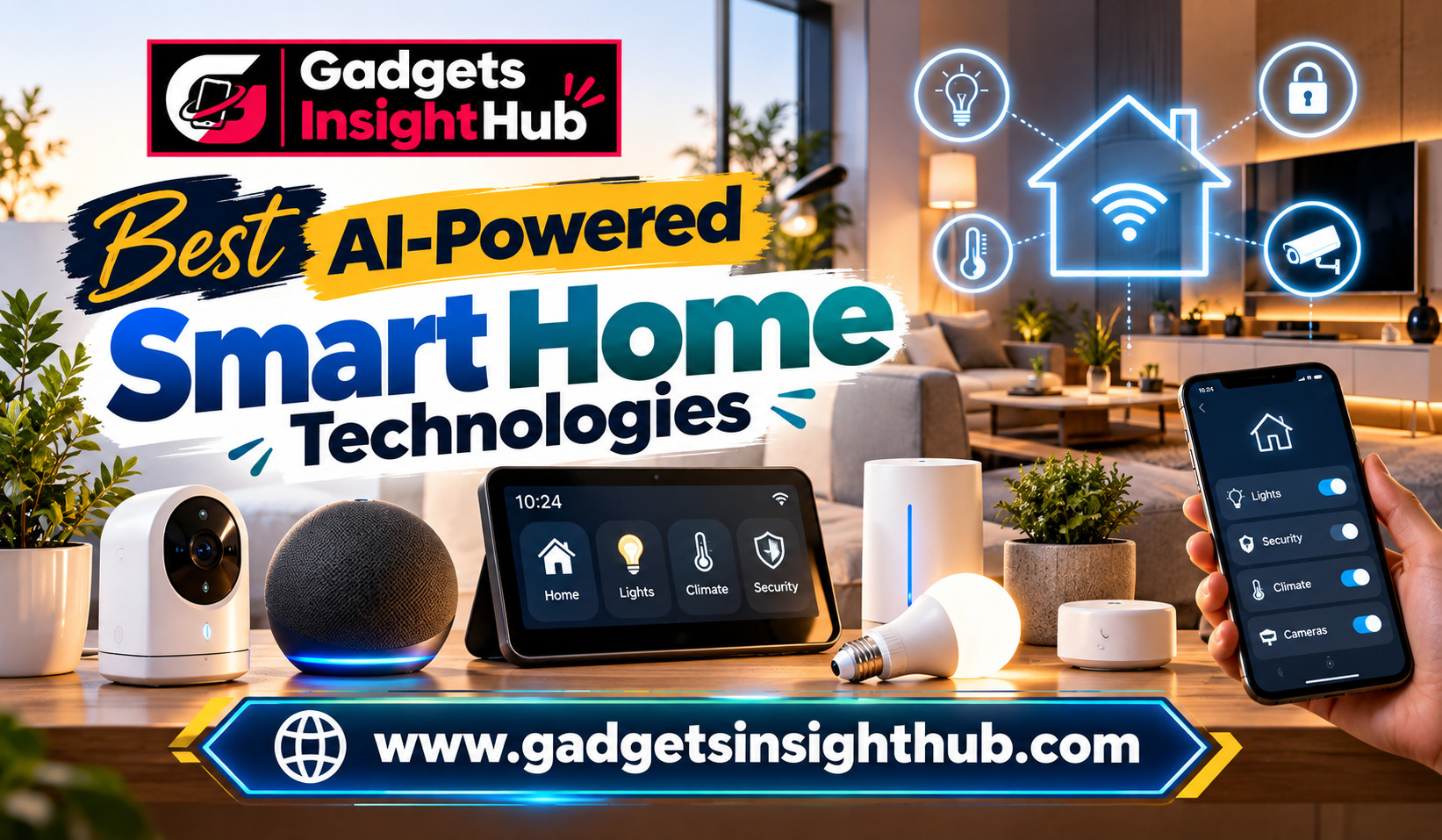
Your home can do much more than provide shelter. With AI-Powered Smart Home Technology, you can automate everyday tasks, improve security, manage energy use, and control connected devices with less effort. From smartphones that recognize text in images to smart speakers that respond to your routines, modern technology offers practical ways to make daily life easier.
However, not every smart feature requires expensive equipment. Many useful tools are already available on Android phones, iPhones, smart TVs, and connected home devices. The key is understanding which features suit your needs and how well they work with your existing technology.
In this guide, you will explore 12 useful smart technology features, learn how they work, and discover what to check before using them at home.
1. Clipboard History for Faster Everyday Tasks
Clipboard history helps you access text, links, and other content you have copied recently. Instead of copying the same information repeatedly, you can retrieve earlier items when the feature or application supports it.
For example, imagine you are setting up a new smart home device. You may need to copy a Wi-Fi network name, an installation link, and configuration instructions. Clipboard history can make switching between these details easier.
How it improves your routine
- Saves time: Retrieve recently copied information without repeating the process.
- Simplifies multitasking: Move between messages, setup instructions, and device applications more efficiently.
- Supports productivity: Reuse frequently needed text when the clipboard tool allows it.
On Android, clipboard history is available in some keyboard applications, including Gboard, although its behavior depends on the version and settings. On Windows, clipboard history can be enabled through the system settings and opened with Windows + V.
You should remember that copied information may contain passwords, addresses, or other sensitive details. Avoid storing confidential information in clipboard tools unless you understand how their history and retention settings work.
2. Screen Recording for Easy Troubleshooting
Screen recording captures the activity displayed on your phone, tablet, or computer. It is useful when you need to document a problem, demonstrate an application, or explain a technical process to someone else.
Suppose your smart lighting application fails to connect to a bulb. You can record the steps you take, including the error message, and share the recording with a support representative.
Features worth exploring
- Record application interactions and compatible system audio.
- Create short tutorials for family members.
- Document problems before contacting technical support.
Android devices with supported software versions generally offer a screen recorder in Quick Settings. iPhones provide a built-in Screen Recording control through Control Center. Exact options vary by operating system version, device manufacturer, and application restrictions.
Some applications prevent recording protected content, while certain devices may limit internal audio capture. Before sharing a recording, check whether it reveals notifications, account details, or personal messages.
Screen recording is especially useful when your smart home setup involves several applications and you want a clear record of the steps required to operate them.
3. Focus Modes for a Less Distracted Home
Focus modes help you reduce interruptions by controlling which notifications and applications can reach you. You can use them to separate work, rest, exercise, and family time without manually silencing every application.
For example, you might create a work focus that allows calls from colleagues while muting shopping notifications. In the evening, a different mode could silence work-related alerts while keeping calls from selected family members available.
Make focus modes more useful
You can configure schedules, permitted contacts, and application-specific notification rules where supported. Some systems also allow focus modes to activate automatically based on time, location, or application use.
Apple offers Focus settings on supported iPhones, iPads, and Macs. Android provides comparable controls through Do Not Disturb, Modes, and manufacturer-specific features.
You can also connect compatible focus settings with home automation. For instance, a supported routine could dim your lights when you begin an evening relaxation session.
Keep emergency contacts and important alerts in mind when configuring restrictions. The available exceptions depend on your device and settings, so test the configuration before relying on it.
4. Text Recognition for Scanning Everyday Information
Text recognition uses optical character recognition (OCR) to identify printed or handwritten characters in images. Some tools also use AI to interpret the information, identify objects, or suggest useful actions.
This feature is valuable when you need to capture information from packaging, instruction manuals, receipts, or appliance labels.
Practical uses around your home
- Extract model numbers from a washing machine label.
- Copy text from a photographed instruction manual.
- Recognize contact information from a printed card.
- Translate supported text from another language.
On compatible Apple devices, Live Text can recognize text in photographs and supported camera views. Google Lens offers text recognition and related visual search capabilities on supported devices and applications.
For example, if you need replacement filters for an air purifier, you can photograph its model label and copy the model number instead of typing it manually.
Recognition is not always accurate. Small print, reflections, unusual fonts, and blurry images can cause errors. Verify model numbers, measurements, and safety instructions before using extracted information.
5. Emergency Information for Faster Access to Important Details
Emergency information features let you make selected details available when they may be needed during an emergency. Depending on the device, these details can include emergency contacts, medical information, and access to emergency calling options.
This is particularly useful if you want important information to be accessible even when your phone is locked.
What you can configure
You may be able to add emergency contacts, relevant medical details, and other information supported by your phone’s emergency settings. Some devices also offer emergency SOS features that help you contact emergency services through specified actions.
Android devices may provide Emergency information or Safety and emergency settings, depending on the manufacturer and software version. iPhones offer Medical ID and Emergency SOS features.
Take a moment to review what appears on your lock screen and what remains private. Information available without unlocking your phone may be visible to other people.
Emergency features also differ by country, mobile network, and device model. Do not assume that every phone automatically contacts emergency services or shares your location in every situation.
6. Battery Optimization for Connected Devices
Battery optimization helps your devices use power more efficiently. On smartphones, this often involves limiting background activity, managing application access, and adjusting performance based on your usage.
It matters in a smart home because your phone may serve as the control center for lights, cameras, locks, thermostats, and other connected equipment.
Ways to improve battery life
- Review applications that consume excessive power in the background.
- Enable battery-saving modes when you need additional operating time.
- Reduce unnecessary background synchronization.
- Keep your device software updated.
Android offers battery usage information and battery management options, while iPhones provide Battery settings and Low Power Mode. The precise controls vary between platforms.
Smart home applications may need background access to deliver notifications or maintain certain connections. Restricting their activity can delay alerts or affect automation, so avoid applying the strictest settings to every application.
For connected home equipment, battery optimization also means checking the manufacturer’s recommended settings for sensors, door locks, cameras, and other battery-powered devices.
7. Device Tracking to Find Lost Phones and Accessories
Device tracking helps you locate supported phones, tablets, computers, and certain accessories. It can reduce the frustration of searching for misplaced equipment and may help you protect your information if a device goes missing.
For example, if you leave your phone somewhere in the house, a supported finding service may let you make it ring. If you misplace compatible wireless earbuds, the service may display their last known location or provide other finding options.
Common tracking options
- Google’s Find Hub for supported Android devices and compatible accessories.
- Apple’s Find My for supported Apple devices and participating accessories.
- Manufacturer-specific finding services for selected products.
Available features depend on your device, account configuration, connectivity, and whether tracking was enabled beforehand. Some services can show a last known location when a device is offline, but this is not guaranteed.
You should enable the relevant finding service before losing a device. Protect your account with strong authentication, and use remote locking or erasing options when appropriate.
Tracking is also useful for household organization, but location sharing should be transparent and based on consent.
8. Accessibility Tools for a More Comfortable Smart Home
Accessibility features help people interact with technology in ways that suit their individual needs. They can also make everyday tasks easier for users who prefer voice control, larger text, captions, or alternative input methods.
Useful accessibility features
Voice control: Operate supported functions through spoken commands.
Screen readers: Hear descriptions of interface elements and on-screen content.
Magnification and larger text: Make content easier to read.
Live captions: Display text for supported speech and audio.
Switch access and alternative controls: Interact with compatible devices without relying entirely on a touchscreen.
Android includes accessibility options such as TalkBack and magnification. Apple devices offer features such as VoiceOver, Zoom, Voice Control, and Live Captions on supported models and languages.
Smart speakers and compatible home assistants can provide another layer of accessibility by allowing you to control lights, thermostats, or other devices without reaching for a phone.
Before choosing a device, check its language support, compatibility, and ability to work with your existing accessories. Accessibility features can vary significantly across operating systems and product generations.
9. Private DNS for an Additional Layer of Online Privacy
Private DNS is a networking feature that can help protect DNS queries between your device and a compatible DNS resolver. DNS translates domain names, such as a website address, into information used to locate internet services.
When supported, DNS over TLS encrypts DNS queries between the device and resolver, reducing the ability of others on the network to read those queries directly.
Why it matters in a smart home
Your home network may contain phones, smart televisions, cameras, speakers, and connected appliances. Understanding how these devices communicate can help you make more informed privacy decisions.
On supported Android versions, you can configure Private DNS through the network settings. The exact location and available choices vary by device.
However, Private DNS is not a complete privacy solution. It does not automatically encrypt all internet traffic, make you anonymous, or guarantee that every connected device uses the same DNS configuration.
For better protection, update your router, use strong Wi-Fi security, change default device passwords, and disable remote access when you do not need it. Check your router and device documentation for additional security options.
10. Wireless File Sharing Across Your Devices
Wireless file sharing allows you to transfer photos, documents, videos, and other supported files without connecting a cable. It is useful when several people or devices need access to household information.
For example, you can share a photograph of an appliance label with another family member, transfer a home inventory document to a laptop, or send a video of a technical problem to a support team.
Tools you can use
- Quick Share: Supports wireless sharing across compatible Android devices and supported Windows computers.
- AirDrop: Allows file sharing between compatible Apple devices.
- Local network sharing: Certain applications and storage devices support transfers over your home network.
Compatibility matters. Quick Share and AirDrop do not provide universal, direct compatibility with every device. You may need a browser-based transfer tool, a shared cloud folder, or another supported method when your devices use different platforms.
Before sending files, check the recipient and the sharing permissions. Avoid transferring sensitive documents over unfamiliar networks, and review whether a shared link allows other people to access the file.
11. Gesture Controls for Faster Navigation
Gesture controls let you perform actions through movements, touches, or specific patterns instead of navigating through multiple menus.
On smartphones, gestures can include swiping to return to the previous screen, switching between applications, or activating selected accessibility functions. Some smart devices also support hand gestures, although their capabilities depend on the hardware.
Examples of useful gestures
You might swipe between applications while following a smart home setup guide. Alternatively, a supported device could recognize a configured gesture to control playback or perform another available action.
Some smartphones provide gesture shortcuts for opening the camera, taking screenshots, or activating accessibility features. Smartwatches and selected home devices may offer additional controls.
Gesture recognition should not be confused with universal AI control. Many gestures rely on fixed operating-system rules rather than machine learning, while camera-based recognition may use different processing methods.
Explore the settings on your device to find the available shortcuts. Choose gestures that are comfortable and reliable, especially if you use your phone while cooking, cleaning, or carrying household items.
12. AI-Driven Home Automation for Everyday Convenience
Home automation connects compatible devices so that selected actions happen automatically. AI can improve certain systems by helping them interpret patterns, respond to context, or provide recommendations, although not every automation requires AI.
For example, a smart thermostat may use occupancy information or learning features to adjust heating and cooling. A smart lighting system may switch lights on according to a schedule or respond to a compatible motion sensor.
Automation ideas worth trying
Morning routine: Turn on selected lights and display your daily schedule at a chosen time.
Energy management: Adjust compatible thermostats according to schedules or occupancy settings.
Home security: Receive notifications when a supported sensor detects movement or a door opens.
Evening routine: Dim compatible lights, activate a supported relaxation scene, and reduce selected notifications.
Voice-controlled routines: Trigger several supported actions through a single command.
Platforms such as Apple Home, Google Home, and Amazon Alexa support different combinations of devices, routines, and integrations. Compatibility varies by product, region, software version, and the smart home standards supported by each device.
Before purchasing equipment, check whether it works with your preferred platform. Matter can improve interoperability among participating smart home products, but it does not guarantee that every feature works across every platform.
Start with a small routine, test it carefully, and add devices gradually. For important functions such as door locks, alarms, and heating, keep manual controls available and avoid automations that could create safety risks.
Conclusion
The best AI-Powered Smart Home Technology is not necessarily the most expensive or advanced option. Features such as clipboard history, text recognition, accessibility controls, device tracking, and wireless sharing can improve everyday convenience, while compatible automation systems can reduce repetitive household tasks.
You can begin with features already available on your phone before investing in additional hardware. Check device compatibility, review privacy settings, and choose tools that solve real problems in your daily routine.
With thoughtful setup, your connected home can become easier to manage, more accessible, and better suited to the way you live.
Frequently Asked Questions
1. What is AI-Powered Smart Home Technology?
AI-Powered Smart Home Technology uses artificial intelligence or intelligent software features to help connected devices interpret information, automate tasks, improve convenience, or support decision-making.
2. Do you need expensive devices to create a smart home?
No, you can begin with existing smartphone features and add compatible smart plugs, lights, sensors, or speakers as your needs and budget allow.
3. Are all smart home devices compatible with each other?
No, compatibility depends on the device, communication standard, software platform, and supported integrations, so you should check these details before purchasing.
4. How can you make your smart home more secure?
Use strong unique passwords, enable multifactor authentication where available, install updates, secure your Wi-Fi network, and review the privacy and access settings of connected devices.