
Smart Gadgets are making everyday life easier by helping you manage tasks, protect personal information, save time, and stay connected. From smartphones that automate routine activities to wearable devices that monitor your daily movement, modern technology offers practical solutions for common problems.
Whether you work from home, travel frequently, study online, or manage a busy household, the right technology can simplify your routine. Some tools help you organize information, while others improve accessibility, security, and productivity.
Here are 15 smart gadgets and built-in features that are changing how you use technology every day, along with practical examples to help you decide which ones deserve a place in your routine.
1. Smart Clipboard History for Faster Copying
On Windows, you can press Windows + V to open clipboard history after enabling the feature in Settings. Android also offers clipboard tools through many keyboard apps, including Gboard, although availability and retention depend on your settings and device.
For example, if you are preparing a report, you can copy several references and switch between them instead of repeatedly returning to each source.
Clipboard history is especially useful for students, writers, office workers, and anyone who regularly transfers information between applications. However, avoid storing passwords, banking details, or other sensitive information in your clipboard because saved entries may remain accessible until removed or cleared.
2. Screen Recording Tools for Easy Tutorials
Screen recording lets you capture activities displayed on your device. Instead of explaining every step through a long message, you can record a process and share the video with someone who needs help.
Modern smartphones and computers commonly include built-in recording options. Windows provides a screen recording feature through tools such as Snipping Tool and Xbox Game Bar, while compatible Android phones and iPhones offer screen recording through their system controls.
Imagine helping a family member adjust their phone settings. You can record the steps, explain each action, and send the clip for them to follow later.
Screen recording is also useful for creating software tutorials, documenting technical problems, and preparing educational content. Before recording, check whether notifications, private messages, or account information could appear on screen. Some applications also restrict recording protected content.
Discover tech devices worth considering.
3. Focus Modes That Reduce Digital Distractions
Notifications can interrupt work, study, and relaxation throughout the day. Focus modes help you decide which alerts deserve your attention and which can wait.
On iPhones, Focus settings let you customize allowed people, applications, and schedules. Android offers comparable options through Do Not Disturb and, on supported devices, additional focus-related features. Windows also provides notification controls and Do Not Disturb settings.
You might create a study mode that silences social media alerts while allowing calls from important contacts. Alternatively, a work schedule can automatically reduce interruptions during meetings.
The main benefit is control rather than complete disconnection. You can remain reachable for urgent matters without responding to every notification immediately.
For better results, review your allowed applications carefully. If every app can send alerts, your focus mode will not make much difference.
4. Text Recognition That Turns Images Into Editable Words
Text recognition technology, commonly called optical character recognition (OCR), identifies written or printed text inside images and converts it into digital text.
Many smartphones already support this feature. Apple Live Text works on supported Apple devices, while Google Lens can recognize text in images and use it for copying, translation, or searching. Exact capabilities vary by device, application, and language.
Suppose you receive a printed invitation containing an address. Instead of typing the entire address manually, you can scan it and copy the relevant information.
OCR can also help you digitize notes, capture information from signs, and extract text from printed documents. It is particularly helpful when working with lengthy reference material.
However, always check the extracted text. Unusual fonts, poor lighting, handwriting, and low-resolution images can lead to recognition errors.
5. Emergency Information for Important Situations
Your smartphone can provide essential information during an emergency, even when you cannot easily explain your needs.
Supported Android devices offer Emergency Information or Safety features, while iPhones provide Medical ID through the Health app. Depending on your settings, you may be able to display selected medical details and emergency contacts from the lock screen.
For example, you can add an emergency contact so someone assisting you knows whom to call. You may also be able to include information about allergies or medications, depending on the device.
Take a few minutes to configure these settings and check how emergency information can be accessed on your phone. Share only information you are comfortable displaying to someone who has physical access to your locked device.
Remember that these features do not replace emergency services, and availability differs by region, operating system, and device model.
6. Battery Optimization for Longer Device Use
Battery optimization features help your devices use power more efficiently. They can be particularly valuable when you spend long hours away from a charging point.
Smartphones commonly offer battery saver or low-power modes that restrict selected background activities, reduce certain visual effects, or adjust performance. Many laptops also provide power modes that balance battery life and performance.
For example, enabling battery saver while travelling can help your phone last longer when you need maps, messages, and calls throughout the day.
You can improve results by lowering screen brightness, reviewing applications that consume excessive power, and disabling unnecessary background activity.
Some devices also include charging optimization features designed to reduce battery aging by adjusting charging behaviour. These options do not eliminate battery wear, but they can help manage it.
Avoid installing unfamiliar battery-saving applications that request excessive permissions. Built-in settings are usually the safest place to begin.
7. Device Tracking for Lost Phones and Accessories
Losing your phone, earbuds, or other connected accessories can be stressful. Device-tracking systems make it easier to locate compatible equipment.
Apple’s Find My network supports locating registered Apple devices and certain compatible accessories. Google’s Find Hub, previously known as Find My Device, helps users locate supported Android devices and compatible items.
Depending on the device and its settings, you may be able to view its location, make it ring, secure it remotely, or erase its data.
Imagine leaving your phone somewhere at home. A tracking service can help you find it without searching every room. If your device is lost outside, the service may provide a location estimate based on available network and device information.
Set up tracking before you lose anything. Keep the relevant account accessible, enable the required permissions, and learn how remote locking works.
Location updates are not guaranteed in every situation, particularly when a device is offline or its battery is depleted.
8. Accessibility Tools That Make Devices Easier to Use
Accessibility features help people interact with technology in ways that suit their individual needs. They can also make everyday tasks more comfortable for anyone experiencing temporary or situational difficulties.
Common options include screen readers, magnification, live captions, voice control, larger text, and speech-to-text tools. Android and iOS provide different combinations of these features, while Windows and macOS include their own accessibility settings.
For instance, live captions can make spoken content easier to follow in a noisy environment. Voice control can help you navigate certain device functions without repeatedly touching the screen.
These tools are useful for people with visual, hearing, mobility, or communication needs. They can also improve convenience during travel or multitasking.
Explore your device’s accessibility menu instead of assuming these features are only for specialist use. You may discover a simple adjustment that makes your regular activities much easier.
9. Private DNS for an Additional Layer of Privacy
Private DNS is a useful Android feature that can improve the privacy of DNS lookups when configured with a compatible provider.
DNS, or the Domain Name System, translates website names into the network addresses computers use to connect. Android supports DNS-over-TLS through its Private DNS setting, which can encrypt DNS queries between your device and a compatible resolver.
To configure it on supported Android versions, open Network and Internet settings, find Private DNS, and choose a supported provider hostname if you want to configure one manually. Menu names vary between manufacturers.
This feature can help protect DNS requests from being read or modified by parties monitoring the connection between your device and the resolver.
However, Private DNS does not make you completely anonymous. It does not automatically encrypt every part of your internet traffic, and it cannot replace HTTPS, sensible privacy settings, or a VPN when one is appropriate.
Choose a reputable provider and understand its privacy policy before changing your settings.
10. Wireless File Sharing Across Devices
Wireless file sharing makes it easier to move photos, documents, and videos without connecting a cable or sending every file through a messaging application.
Apple devices support AirDrop, while compatible Android devices use Quick Share. Windows also supports nearby sharing features, depending on the version and configuration. Cross-platform compatibility varies, so the easiest method depends on the devices involved.
Suppose you take photographs on your phone and need them on your laptop for a presentation. A supported wireless sharing tool can transfer the files directly between nearby devices.
This approach can reduce the need to email attachments to yourself or upload private documents to a cloud service.
For a smoother experience, enable the required wireless connections, select the correct receiving-device visibility setting, and confirm the recipient before accepting a transfer.
If you frequently move large files, check whether your devices support the same sharing system before relying on it.
11. Smart Gestures for Quicker Navigation
Gestures allow you to control devices through specific movements, taps, or touch patterns. They can reduce the number of steps required to perform common actions.
Examples include double-tapping to wake a compatible phone, using a three-finger gesture to take a screenshot on certain models, or navigating a smartphone through swipes instead of physical buttons.
Some laptops also support touchpad gestures for switching desktops, changing applications, and controlling zoom. Smartwatches may allow wrist movements or other gestures to perform selected actions.
Imagine switching between applications while holding something in your other hand. A supported gesture may help you complete the task with less effort.
Because gestures differ between manufacturers and operating systems, check your device’s settings or user guide before expecting a particular shortcut to work.
You should also disable gestures that trigger accidentally. The most useful shortcuts are those that save time without making your device harder to control.
12. Automation Tools for Repetitive Tasks
Automation allows your devices to perform selected actions when certain conditions are met. Instead of manually repeating the same steps every day, you can create a routine that handles part of the process.
Apple Shortcuts supports automations on compatible Apple devices. Android users may have access to Google Assistant routines, manufacturer-specific routines, or third-party automation applications. Available triggers and actions vary.
For example, you could create a morning routine that adjusts selected device settings, displays your calendar, and opens a preferred application. You might also automate reminders for recurring household tasks.
Automation is useful when your schedule follows predictable patterns. It can reduce small interruptions and make your digital environment more consistent.
Start with simple routines before creating complex workflows. Review permissions carefully, especially when an automation can access your location, contacts, messages, or connected smart-home equipment.
Always test new automations to ensure they work as expected.
13. Smart Plugs That Add Control to Ordinary Appliances
Smart plugs bring basic connected-home functions to compatible electrical appliances without requiring you to replace the appliances themselves.
A smart plug connects to a wall outlet and allows you to control the power supplied to a connected device through an app, schedule, or supported voice assistant.
For example, you can schedule a lamp to switch on at a particular time or turn off a compatible appliance remotely when you no longer need it.
Some smart plugs also report energy consumption, although this depends on the model.
Before purchasing one, check the plug type, electrical rating, Wi-Fi requirements, and compatibility with your preferred smart-home platform. Never use a smart plug with an appliance whose power requirements exceed its rating.
Also, avoid using a smart plug as a substitute for a proper safety control on equipment that must not be switched off unexpectedly.
14. Smartwatches That Keep Useful Information Within Reach
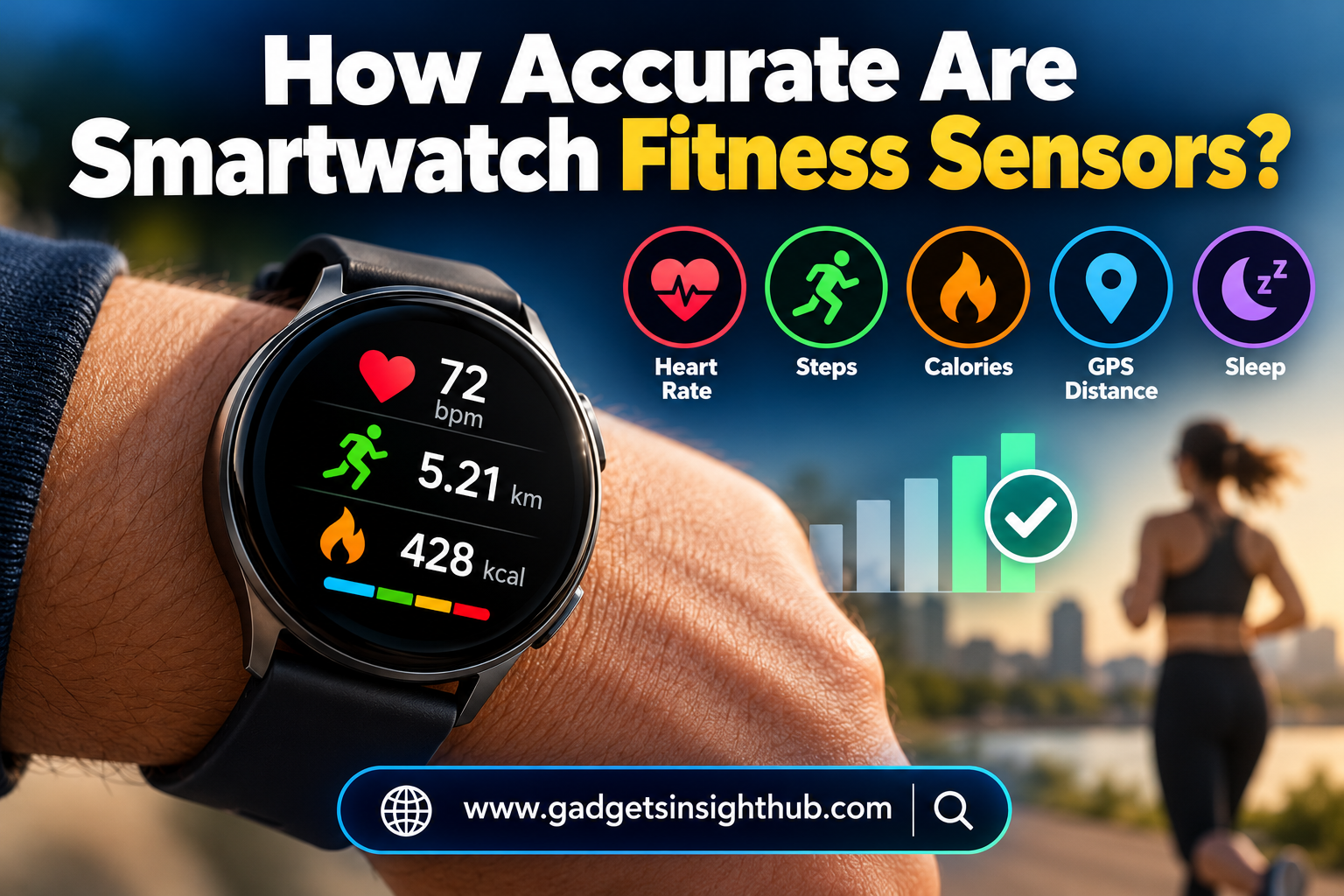
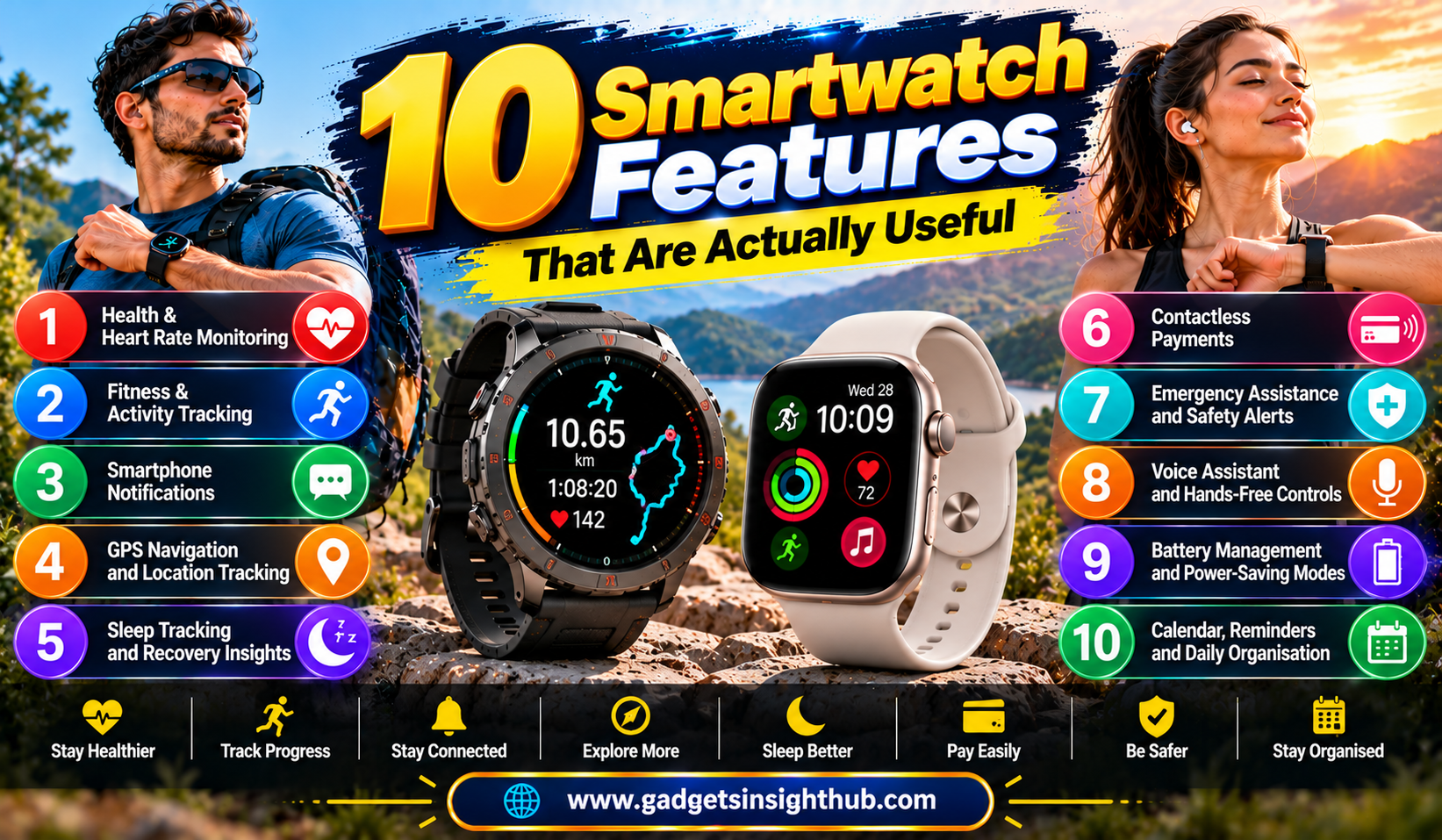
Smartwatches combine notifications, activity tracking, timers, and other everyday tools in a compact wearable device.
Depending on the model, you can check messages, monitor movement, set reminders, control music, or view selected health-related measurements. Some watches also support emergency calling or fall-detection features in supported locations and configurations.
For example, if you are walking or exercising, a quick glance at your wrist may be more convenient than taking your phone out of your pocket.
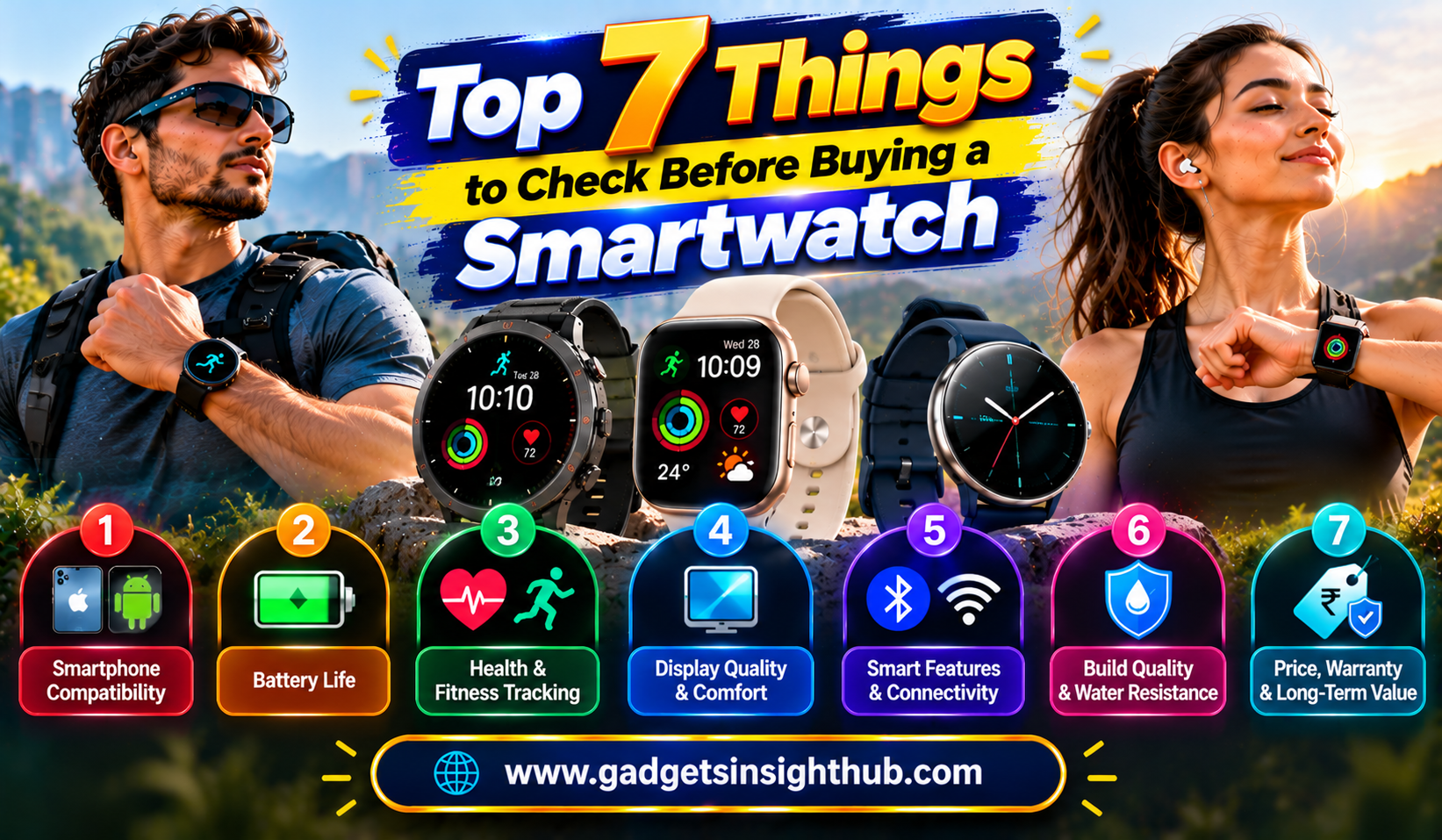
Many smartwatches work best when paired with a compatible smartphone. Some advanced functions require a specific operating system, a particular phone brand, or a separate cellular plan.
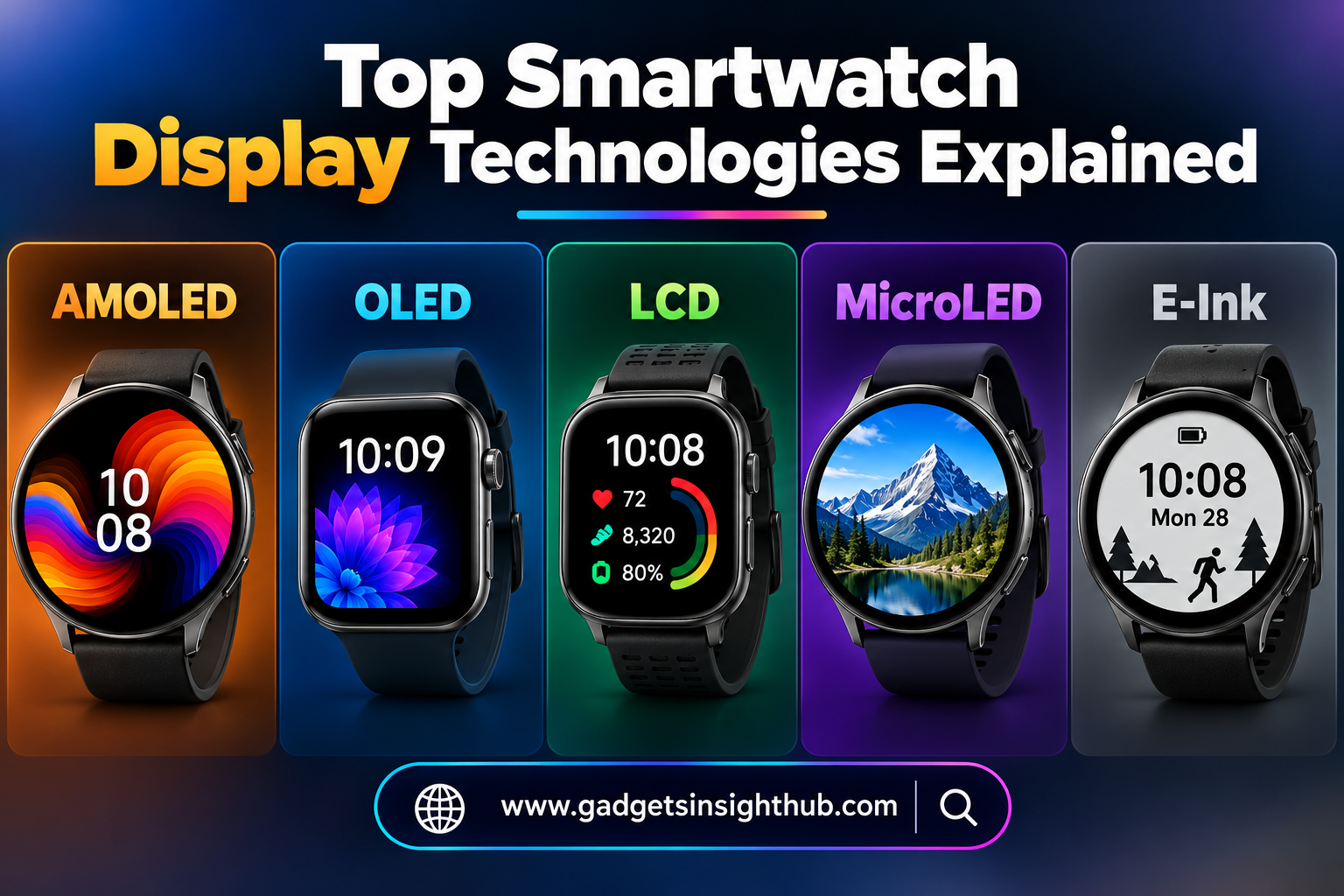
Consider battery life, display readability, comfort, water resistance, and app compatibility before buying one.
Although wearable devices can help you understand patterns in your activity, their measurements are estimates and should not automatically be treated as medical diagnoses.
15. Smart Home Sensors That Respond to Their Surroundings
Smart sensors help connected devices react to changes in the environment. Depending on the system, sensors can detect movement, open doors, changes in temperature, water leaks, or other conditions.
For example, a compatible motion sensor can trigger a light when someone enters a room. A water-leak sensor placed near a washing machine may send an alert when it detects moisture.
These small devices can make home management more convenient because they respond to specific events instead of relying entirely on manual controls.
However, sensors generally need a compatible hub, wireless connection, or smart-home platform. Some work directly with a phone, while others depend on additional equipment.
Check battery requirements, communication range, platform compatibility, and privacy settings before installing them.
For important safety applications, choose devices designed for that purpose and follow their installation instructions. A basic connected sensor should not replace a certified smoke alarm, carbon monoxide alarm, or other required safety equipment.
Discover useful features you might be missing.
Conclusion
Smart Gadgets are changing everyday life by making routine activities faster, more convenient, and easier to manage. Features such as clipboard history, text recognition, focus modes, device tracking, and wireless sharing can improve your productivity without requiring expensive upgrades.
Meanwhile, smart plugs, wearables, and home sensors offer additional ways to manage your surroundings and stay informed.
The best approach is to start with the tools that solve your actual problems. Explore the features already available on your devices, check compatibility before purchasing new equipment, and review privacy settings regularly. With a few thoughtful choices, you can make technology work more effectively for your daily routine.
Frequently Asked Questions
1. What are Smart Gadgets?
Smart Gadgets are electronic devices or connected tools that use software, sensors, wireless communication, or automation to make everyday tasks more convenient.
2. Can you use smart features without buying new devices?
Yes, many useful features, including screen recording, clipboard history, focus modes, accessibility tools, and device tracking, are available on existing phones and computers.
3. Are Smart Gadgets compatible with every smartphone?
No, compatibility depends on the device model, operating system, available hardware, applications, and supported wireless technologies.
4. How can you use Smart Gadgets more safely?
You can improve safety by installing trusted applications, reviewing permissions, enabling device security features, updating software, and avoiding unnecessary sharing of personal information.