
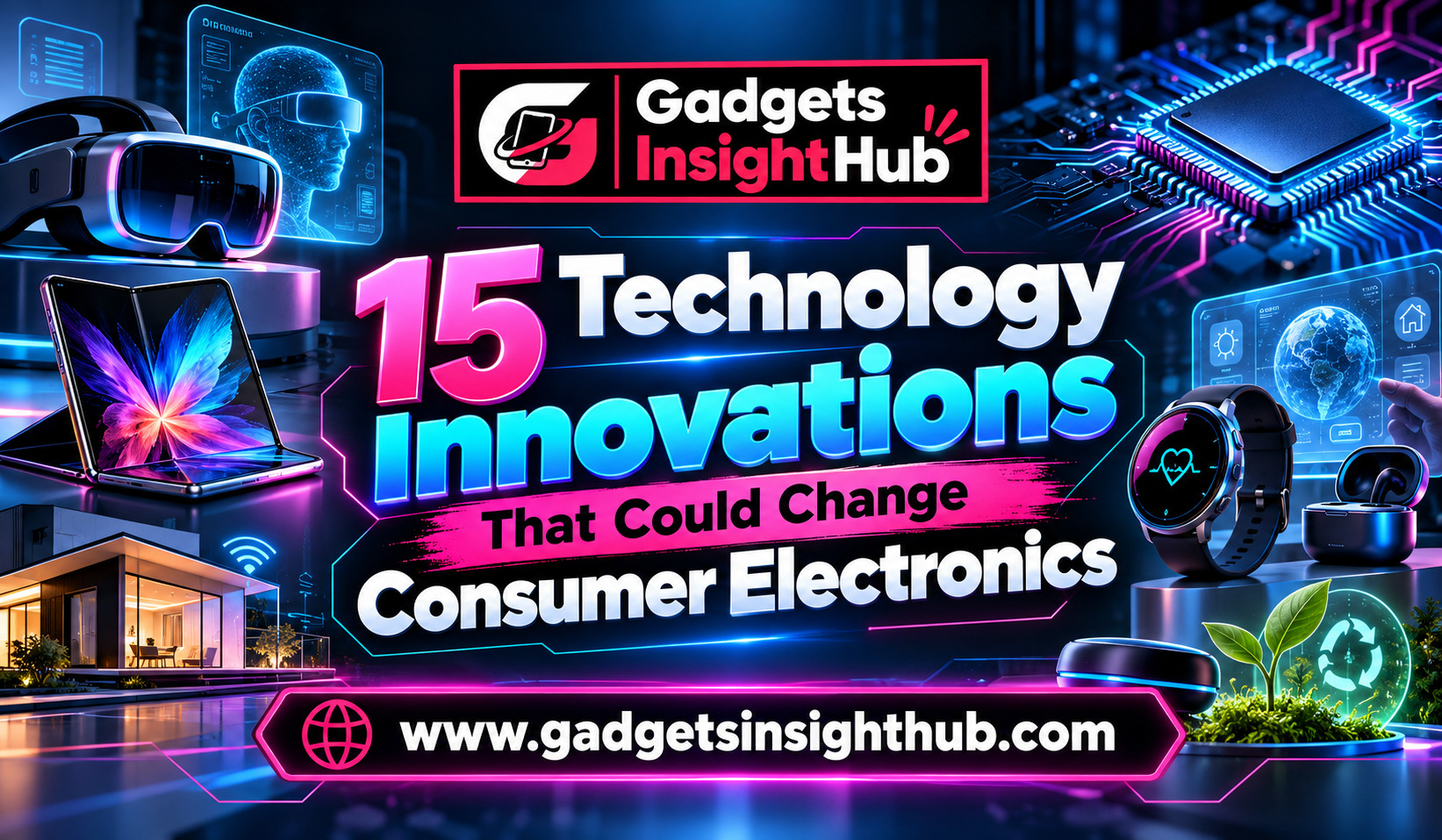
Consumer electronics continue to evolve as manufacturers find better ways to make devices faster, smarter, safer, and easier to use. From smartphones and laptops to smart TVs, wearables, and home appliances, Technology Innovations are changing how you interact with the devices you use every day. Many improvements focus on convenience, while others aim to improve privacy, accessibility, battery life, and productivity.
You do not always need to purchase a new device to benefit from these changes. Features such as clipboard history, screen recording, wireless file sharing, and automation can already improve your experience on compatible devices. At the same time, emerging developments in artificial intelligence, advanced batteries, and flexible displays could influence the next generation of consumer electronics.
Understanding these developments helps you make better purchasing decisions and get more value from your existing gadgets. Here are 15 technology innovations worth watching, along with practical examples of how they can improve your everyday digital experience.
1. Artificial Intelligence That Makes Devices More Helpful
Artificial intelligence (AI) is becoming a bigger part of consumer electronics. Instead of simply following commands, compatible devices can use AI to understand requests, recognize patterns, and assist with everyday tasks.
For example, AI-powered smartphone features can summarize selected text, improve photographs, suggest message replies, and help you organize information. Some laptops also support local AI processing, allowing certain tasks to run directly on the device rather than relying entirely on cloud services.
This can save time when you work, study, or manage personal projects. However, AI capabilities depend on your device’s hardware, operating system, and available software.
Before buying an AI-enabled gadget, check which features work locally, which require an internet connection, and whether additional subscriptions are necessary. These details can make a significant difference to your experience.
2. Clipboard History for Faster Everyday Work
Copying and pasting information is a routine part of using computers and smartphones. Clipboard history makes this process more useful by allowing you to access previously copied text instead of keeping only the latest item.
On Windows, you can open clipboard history using the Windows + V keyboard shortcut after enabling the feature. Depending on your device and settings, you can revisit copied text and pinned items.
Android availability varies by keyboard app and device manufacturer. Some keyboards, including Gboard, provide clipboard tools that retain copied items temporarily.
Imagine researching a product and collecting its name, price, specifications, and website address. Clipboard history can help you move between these details without repeatedly returning to each source.
For sensitive information, such as passwords or banking details, avoid relying on clipboard storage. Use a trusted password manager and review your clipboard settings when privacy matters.
3. Advanced Screen Recording for Tutorials and Troubleshooting
Screen recording allows you to capture activity on your display as a video. It is useful when you want to explain a process, document a technical problem, or create a tutorial.
Modern operating systems offer built-in recording options. Windows includes screen recording capabilities through tools such as Snipping Tool and Xbox Game Bar, although their available functions differ. Recent Android versions also include a screen recorder in the Quick Settings panel, while iPhones and iPads provide a Screen Recording control through Control Center.
Depending on the device, you may be able to record microphone audio, internal audio, or selected screen activity.
For example, you can record the steps needed to configure a new application and share the video with a colleague. This is often easier than explaining every step through messages.
Remember that some apps restrict recording of protected content. You should also avoid capturing private messages, payment details, or other people’s information without permission.
4. Focus Modes That Reduce Digital Distractions
Notifications can interrupt your work even when you only intend to check one message. Focus modes help you control these interruptions by limiting notifications from selected applications and contacts.
On Apple devices, Focus can support different settings for work, personal time, sleep, and other activities. Android offers related options through Do Not Disturb, notification controls, and, on supported devices, dedicated focus features.
You can create a work setup that allows calls from important contacts while silencing social media notifications. Later, you can switch to a personal setup that gives you more freedom to communicate.
Some devices can activate focus settings automatically according to a schedule, location, or activity, depending on the operating system.
The key is to configure exceptions carefully. You want fewer unnecessary interruptions without missing urgent calls, reminders, or important messages.
5. Text Recognition That Turns Images Into Useful Information
Text recognition technology, often called optical character recognition (OCR), identifies printed or handwritten characters in images and converts them into digital text.
This feature can save time when you need information from a document, receipt, presentation slide, or printed page. Rather than typing everything manually, you can extract supported text using a compatible application.
For instance, Apple’s Live Text can recognize text in supported images and camera views on compatible devices. Google Lens also offers text recognition features on supported platforms.
You might use these tools to copy an address from a photograph, capture details from a business card, or translate a sign while travelling.
Accuracy depends on image quality, lighting, handwriting, and language support. Always check extracted information before using it in a form, report, or official document.
For sensitive documents, review the application’s privacy practices before uploading images to an online service.
6. Emergency Information Available From the Lock Screen
Emergency information features make important details easier for responders or other helpers to access when you cannot communicate clearly.
Depending on the device, you may be able to add medical information, emergency contacts, or other essential details that can be viewed from the lock screen without unlocking the phone.
Android devices may offer Emergency Information or Safety features, while Apple devices provide Medical ID through the Health app.
You can use these tools to list relevant allergies, medical conditions, or emergency contacts. Certain phones and connected devices also support emergency calling or satellite-based emergency communication in specific locations and circumstances.
These functions are not identical across devices, countries, or mobile networks. Satellite services may require compatible hardware and supported regional coverage.
Take a few minutes to configure the available options and keep your information current. Because some details may be visible to others, include only information you are comfortable making accessible during an emergency.
7. Smarter Battery Optimization
Battery technology and power management are important areas of development in consumer electronics. Manufacturers are improving how devices distribute power, manage charging, and reduce unnecessary background activity.
You can already benefit from software features such as Battery Saver on Android and Low Power Mode on Apple devices. Depending on the model, battery optimization may restrict background activity, reduce visual effects, or adjust performance.
Some smartphones also provide optimized charging features that learn your charging routine or limit charging under certain conditions to help reduce battery aging.
For example, you could enable a power-saving mode during a long journey when access to a charger is limited. You might also review which applications consume the most energy.
Remember that battery performance depends on usage, temperature, battery age, network conditions, and hardware. Fast charging can be convenient, but it does not eliminate battery wear.
When comparing devices, examine real-world battery tests and charging support instead of relying only on advertised battery capacity.
8. Device Tracking and Better Recovery Options
Losing a smartphone, tablet, laptop, or pair of wireless earbuds can create inconvenience and security concerns. Device-tracking systems help you locate compatible hardware and take protective action when it goes missing.
Apple’s Find My network and Google’s Find Hub provide location and recovery features for supported devices and accessories. Windows also offers a Find my device feature on compatible systems when the required settings are enabled.
Depending on the product, you may be able to view its last known location, make it play a sound, mark it as lost, or erase its data remotely.
For example, if you leave your headphones at a café, a supported tracking feature may help you narrow down their location.
Before you need these tools, enable the necessary settings, use a secure account, and keep recovery details up to date. Location accuracy varies, and some functions require an internet connection, nearby participating devices, or sufficient battery power.
Tracking cannot guarantee that a lost device will be recovered, but preparation can improve your chances.
9. Accessibility Tools That Make Devices Easier to Use
Accessibility technology helps people interact with electronic devices in ways that suit their individual needs. These tools can also make everyday tasks more convenient for users who do not have a disability.
Examples include screen readers, magnification, captions, voice control, speech-to-text, and adjustable display settings.
On Apple devices, VoiceOver reads interface elements aloud, while Android provides TalkBack for screen-reading assistance. Windows also includes Narrator, magnification, and other accessibility options.
Live captions and speech recognition can make supported audio or conversations easier to follow. Voice control can help users navigate certain interfaces without relying entirely on touch or a keyboard.
Suppose you need to follow a video in a noisy environment. Captions may help you understand the content without increasing the volume.
Availability varies by language, application, operating system, and device. Exploring the accessibility settings on your current gadgets may reveal useful features you have never tried.
10. Private DNS for an Additional Layer of Privacy
Private DNS is a networking feature that can protect DNS lookups between a compatible device and a supported DNS resolver.
DNS, or Domain Name System, helps translate domain names into network addresses. Without encryption, DNS queries may be visible to parties monitoring the relevant network path.
On Android 9 and later, Private DNS settings support DNS-over-TLS when configured with a compatible provider. Other operating systems and applications may support different encrypted DNS methods.
This can be useful when you want to reduce the exposure of DNS requests on networks you do not control.
However, Private DNS does not make you completely anonymous. It does not automatically encrypt every connection, hide your IP address, or prevent websites from tracking you through cookies and other techniques.
If you change your DNS provider, choose a reputable service and understand its privacy policy. Incorrect settings may also interfere with connectivity on some networks.
11. Wireless File Sharing Across Devices
Wireless file sharing makes it easier to move photographs, videos, documents, and other files between compatible gadgets without connecting a cable.
Apple’s AirDrop supports sharing between compatible Apple devices. Google’s Quick Share provides file-sharing capabilities across supported Android devices and certain Windows computers.
These systems can reduce the steps involved in transferring files. For example, you can send a collection of photographs from your phone to a compatible laptop before editing them.
Transfer speed depends on factors such as file size, wireless conditions, and device compatibility. Sharing options and discovery settings also vary.
Before transferring sensitive documents, verify the recipient and adjust who can discover your device. You should also avoid leaving broad sharing permissions enabled when they are no longer needed.
As device ecosystems become more connected, wireless sharing can make your phone, tablet, and computer feel more like parts of one workspace.
12. Gesture Controls for More Natural Interaction
Gesture controls let you perform actions through movements rather than relying exclusively on buttons or menus.
Smartphones already use gestures for navigation, switching applications, and returning to the home screen. Smartwatches may recognize wrist movements, while some wireless earbuds support touch gestures or head movements for selected functions.
On compatible devices, you may be able to answer calls, pause media, navigate screens, or trigger shortcuts with a simple movement.
These controls are particularly helpful when your hands are occupied. For example, you might pause music through an earbud control while exercising instead of taking out your phone.
However, gesture support differs widely across manufacturers and product models. Some features require specific accessories or software versions.
Explore the gesture settings on your device and learn which actions you can customize. Disable gestures that trigger accidentally, especially when they interfere with regular use.
13. Automation That Handles Repetitive Tasks
Automation allows your devices to perform selected actions when particular conditions are met. Instead of repeating the same steps every day, you can create routines that run with less manual effort.
Apple Shortcuts supports personal automations on compatible devices. Android users may have access to Google Assistant routines, manufacturer-specific routines, or third-party automation applications, depending on their device and software version.
For example, you could create a routine that activates Do Not Disturb at bedtime, lowers your phone’s volume, and opens a preferred application. A computer automation might organize downloaded files or launch the tools you need for work.
Automation can also connect compatible smart lights, speakers, thermostats, and other home devices.
Start with simple tasks and test each routine before depending on it. Review permissions carefully, particularly when automation involves messages, location data, payments, or other sensitive activities.
14. Flexible Displays That Change Device Design
Flexible display technology gives manufacturers more options for designing screens that bend or fold. Foldable smartphones already demonstrate how this technology can combine a compact device with a larger display when opened.
A foldable phone can provide more room for reading, multitasking, or viewing documents without requiring a separate tablet. Some designs also support multiple application windows.
Future developments may improve display durability, reduce visible creases, and create new product shapes. However, progress depends on manufacturing methods, material improvements, and cost.
Flexible screens also introduce practical trade-offs. Hinge durability, screen protection, repair costs, thickness, and water resistance can differ from conventional smartphones.
If you are considering a foldable device, compare its durability, warranty, software support, and repair options rather than judging it by screen size alone.
15. Next-Generation Batteries and Charging Technology
Battery improvements could influence how long consumer electronics operate between charges and how quickly they recharge.
Researchers are investigating approaches such as solid-state batteries, silicon-based anodes, and alternative battery chemistries. These technologies aim to improve aspects of energy storage, safety, charging performance, or manufacturing.
However, research progress does not mean every technology is ready for widespread consumer use. Commercial availability, cost, production scale, and long-term durability remain important challenges.
Wireless charging is also evolving. Some standards and devices support magnetic alignment, while newer charging specifications aim to improve compatibility and charging performance.
For you, the practical benefit will depend on the products that reach the market. Look for independently tested battery life, charging compatibility, thermal performance, and replacement options.
Better batteries could eventually make smartphones, laptops, wearables, and other portable devices more convenient, but you should evaluate currently available products on verified performance rather than future promises.
Gadget Trends Losing Popularity
Conclusion
These 15 Technology Innovations show how consumer electronics are evolving through smarter software, improved connectivity, stronger privacy options, and new hardware designs. Some features, including clipboard history, focus modes, screen recording, accessibility tools, and device tracking, are already available on many compatible devices. Others, such as advanced batteries and more flexible displays, continue to develop.
You do not need to replace every gadget to benefit from these improvements. Start by exploring the features available on your existing phone or computer, reviewing privacy settings, and automating tasks that consume your time.
When you purchase your next device, consider compatibility, reliability, security, battery performance, and long-term software support alongside headline specifications. This approach helps you choose technology that solves real problems and delivers lasting value.
Frequently Asked Questions
1. What are technology innovations in consumer electronics?
Technology innovations in consumer electronics are improvements in hardware, software, connectivity, and user interfaces that make devices more useful, efficient, secure, or accessible.
2. Which technology innovations can you use on your current smartphone?
Depending on your model and operating system, you may already have access to clipboard tools, screen recording, focus settings, text recognition, emergency information, device tracking, and automation.
3. How can technology innovations improve device security and privacy?
Features such as encrypted DNS, secure device tracking, controlled file sharing, and privacy settings can reduce certain risks when configured and used correctly.
4. Which future technology innovations could have the biggest impact on consumer electronics?
Advances in artificial intelligence, battery chemistry, flexible displays, wireless connectivity, and accessibility could significantly influence future consumer devices, although their impact will depend on cost, compatibility, and practical performance.